Using Muster
Open the window with /muster, a click on the minimap banner, or the key you bind to Show or hide Muster. Drag it by any empty spot; Escape closes it. It has four tabs.
Roster
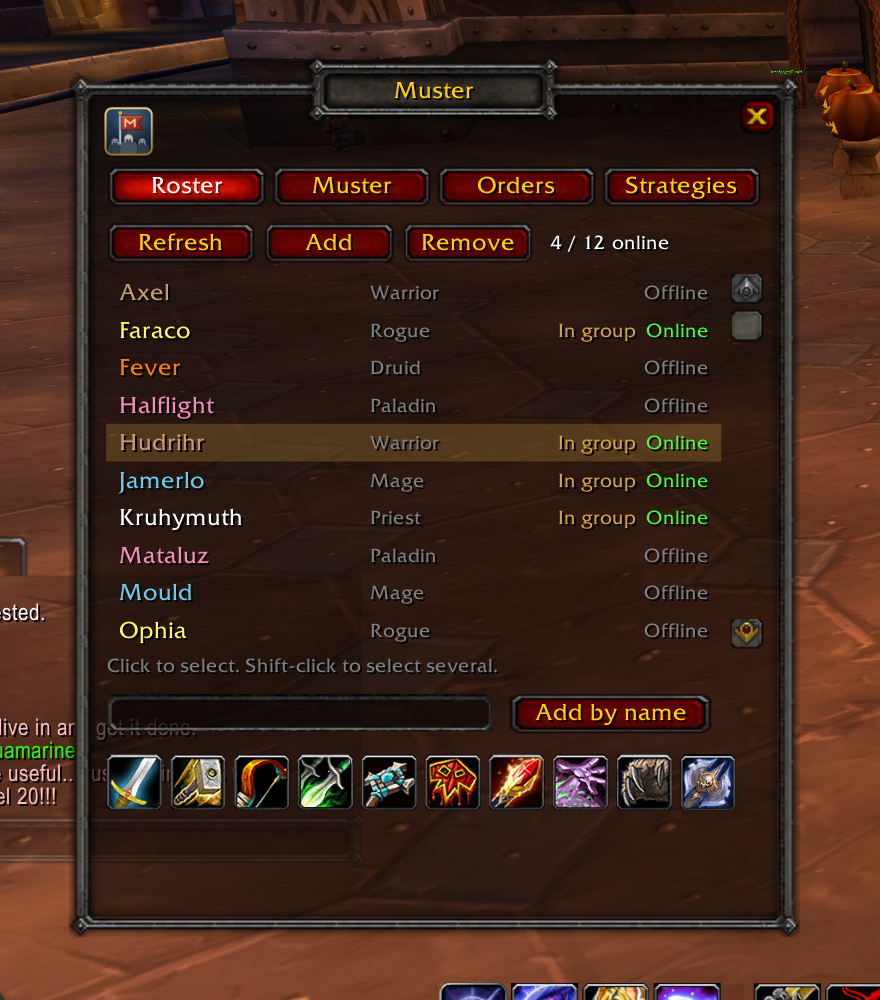
The list shows every bot you can log in: your own account’s other characters, plus any random bots in your group. Each row has the bot’s name in its class colour, its class, and whether it’s Online and In group.
- Refresh asks the server for the list (
.playerbot bot list). Muster hides the server’s raw reply in chat while it’s waiting for it. - Click a row to select it; shift-click to select several.
- Add logs the selected bots in. They join your group by themselves.
- Remove logs them out.
- Add by name: type one name or several separated by commas, then press Enter or the button.
- Add by class: click a class icon to add one bot of that class. The server picks a free character of your faction.
The bot you select here is also the one the Orders and Strategies tabs act on when they’re set to Selected bot. If nothing is selected, they use your current target.
Muster
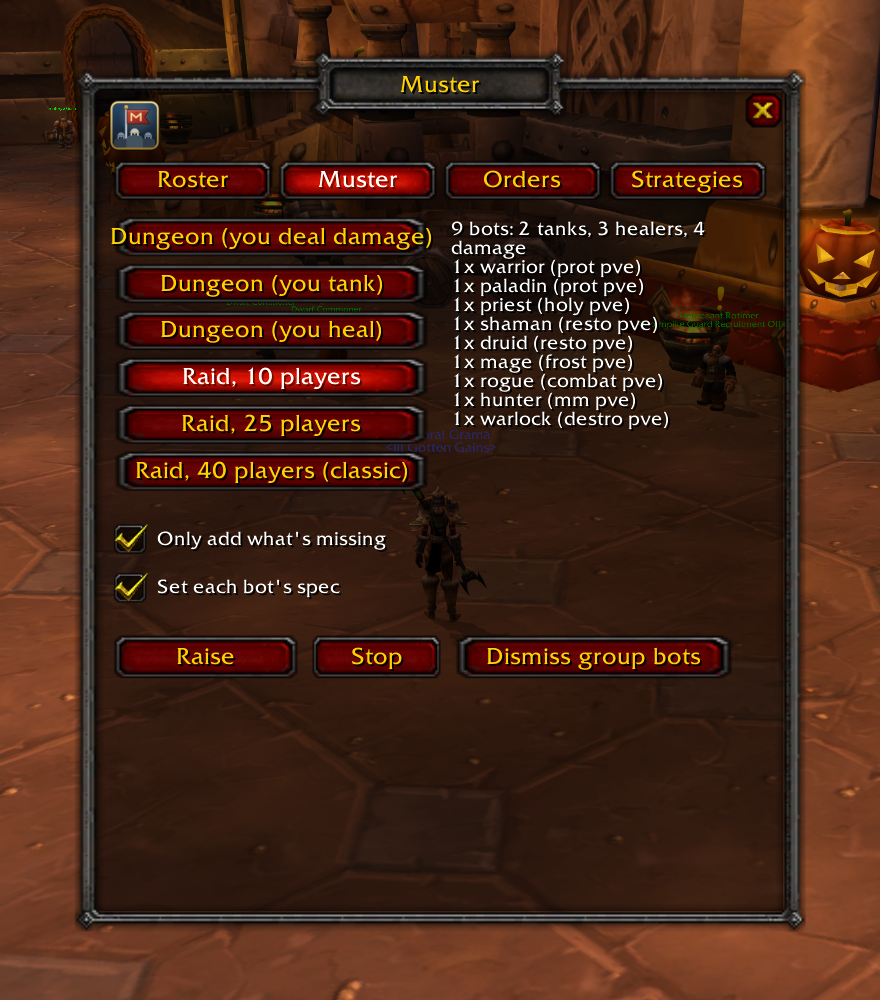
Pick a template on the left; the right side shows how many tanks, healers and damage dealers it has and which class and spec fills each slot.
| Template | Bots | Made for |
|---|---|---|
| Dungeon, you deal damage | 4 | a tank, a healer and two damage dealers |
| Dungeon, you tank | 4 | a healer and three damage dealers |
| Dungeon, you heal | 4 | a tank and three damage dealers |
| Raid, 10 players | 9 | 2 tanks, 3 healers, 4 damage |
| Raid, 25 players | 24 | 3 tanks, 6 healers, 15 damage |
| Raid, 40 classic | 39 | 3 tanks, 11 healers, 25 damage |
Press Raise. Muster adds one bot every 1.2 seconds and shows its progress under the buttons. Your party turns into a raid by itself when the sixth member joins. Stop stops after the current bot When the raise is done, Muster refreshes the roster so the new bots show up there.
Two options change how a raise works:
- Only add what’s missing (on by default): count the bots already in your group by class and add only the rest. Raise the 10-man, then the 25-man, and you only get the extra fifteen.
- Set each bot’s spec (on by default): when a bot of a slot’s class joins, Muster whispers it the slot’s spec, for example
talents spec prot pve, three seconds after it arrives. Without this, each bot keeps whatever spec the server rolled for it.
If the server refuses a bot (no free characters of that class, too many bots, or no permission), Muster stops and prints the server’s reason. See Server settings.
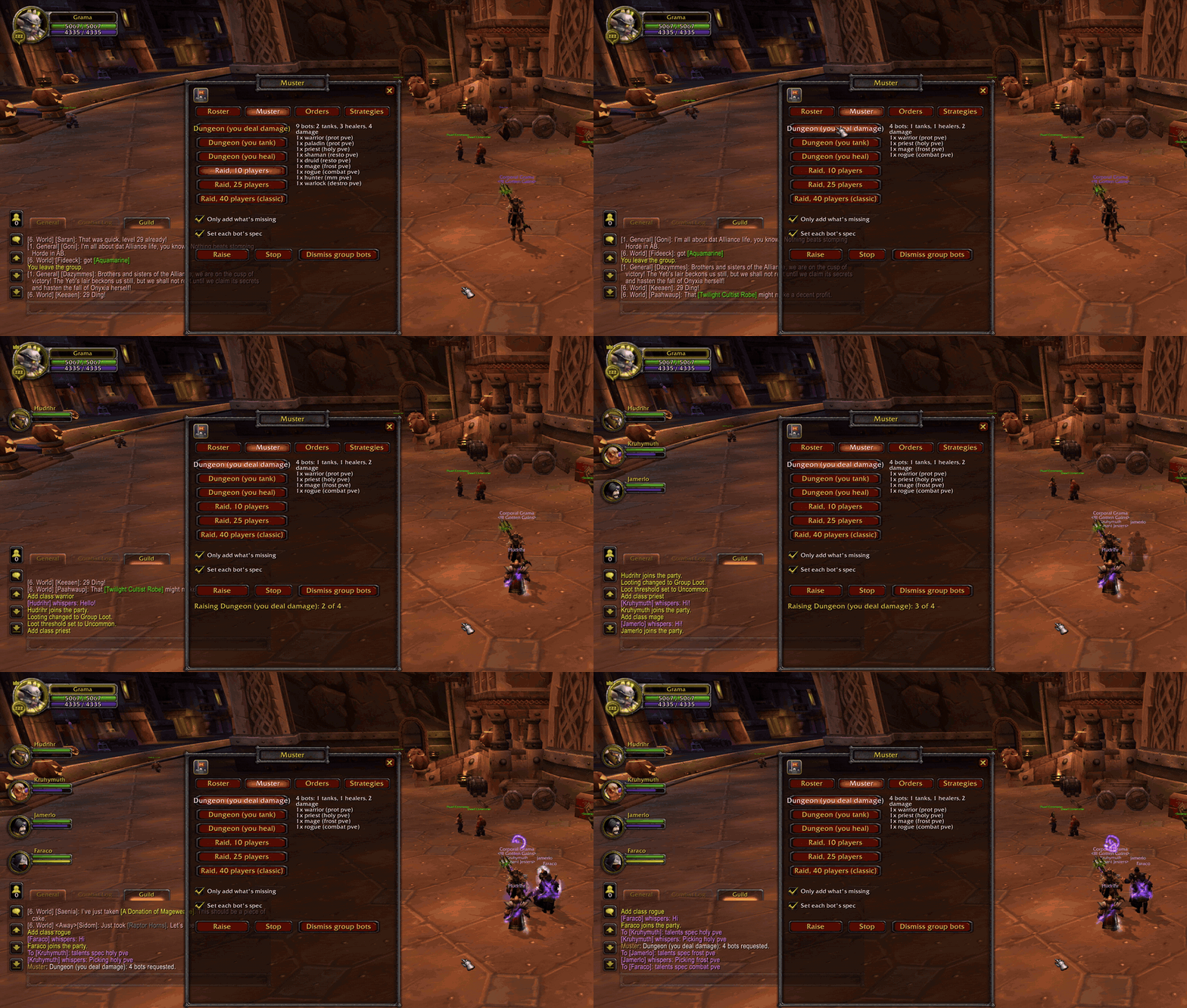
Dismiss group bots refreshes the roster, then logs out every member of your group that it lists as one of your bots, and, if you lead the group, takes them out of it. Real players are never removed.
Orders
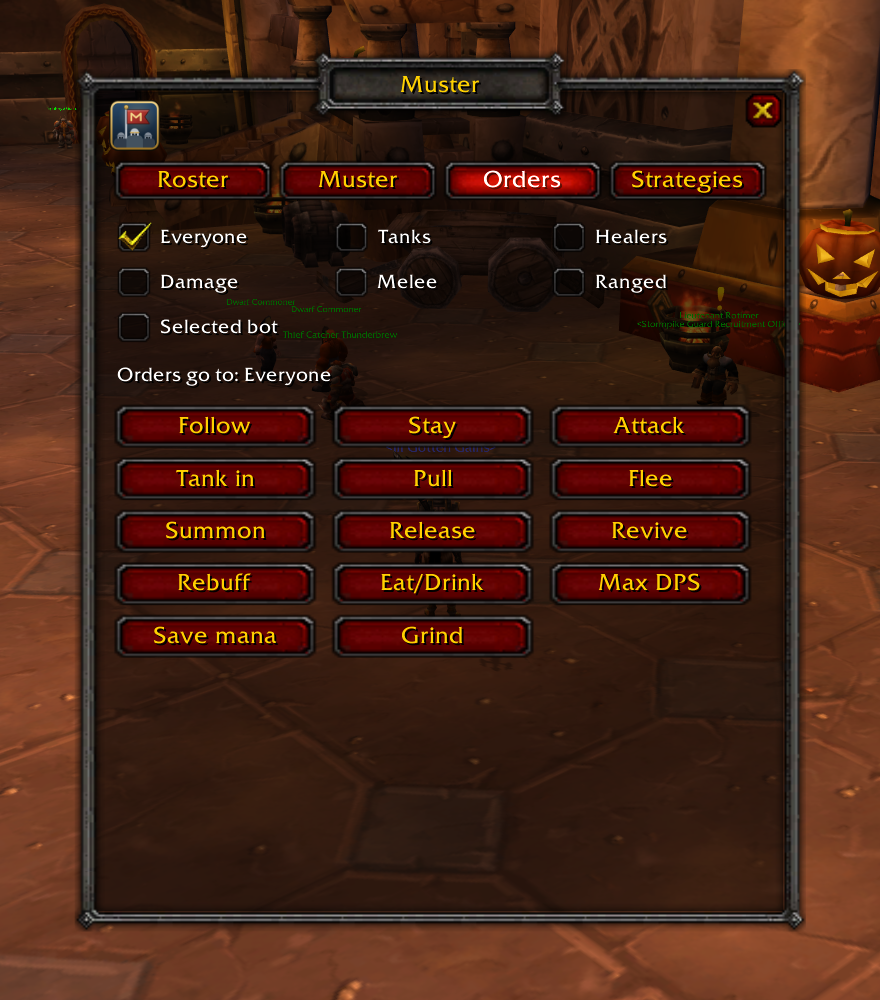
Choose who listens at the top:
- Everyone, Tanks, Healers, Damage, Melee or Ranged go out in party or raid chat, with a role filter like
@tankin front. - Selected bot is whispered to the bot selected on the Roster tab, or to your target.
Then click an order. Hover over a button to see what it does and the exact words it sends.
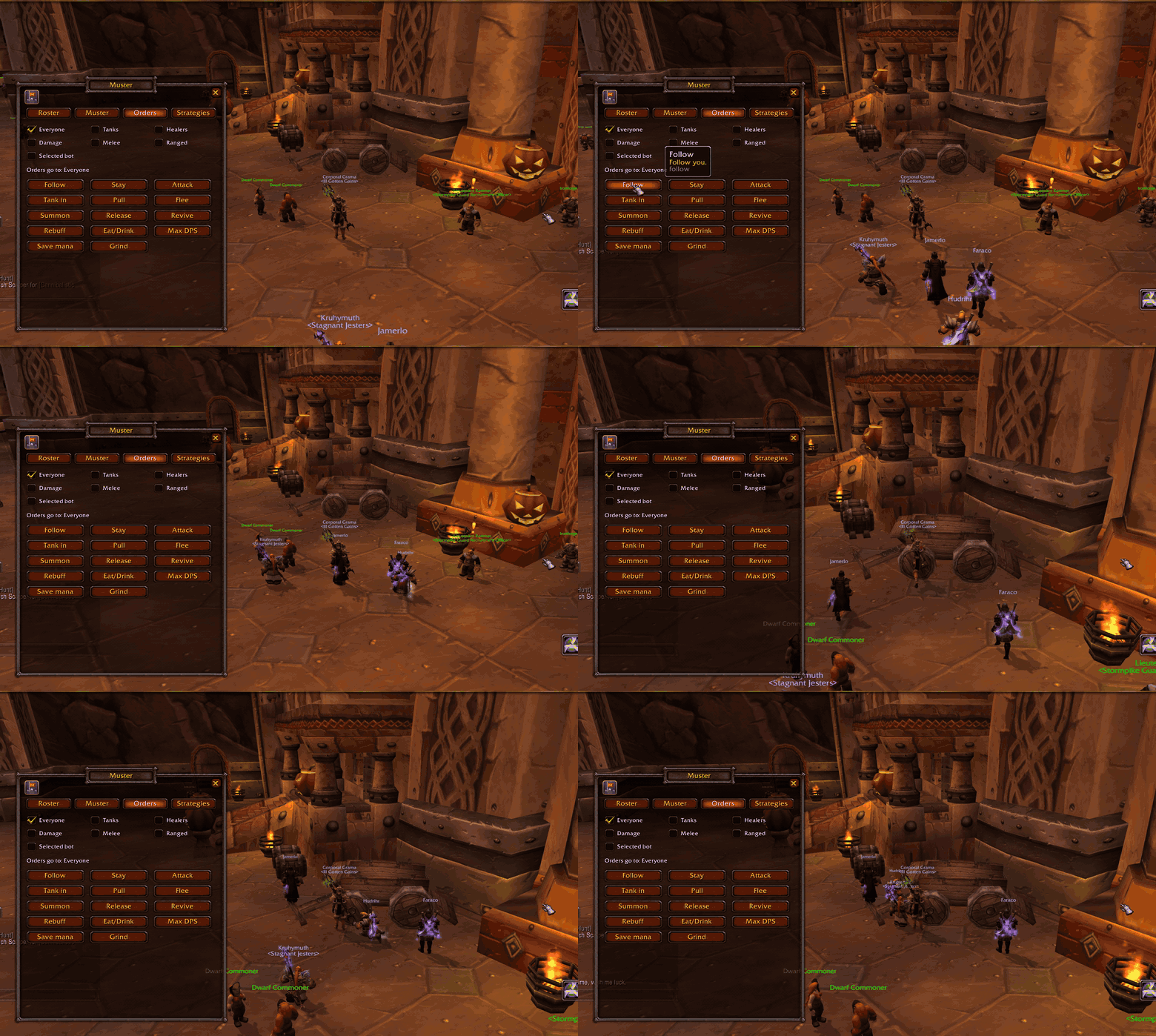
| Order | Sends | What the bots do |
|---|---|---|
| Follow | follow |
follow you |
| Stay | stay |
hold where they stand |
| Attack | attack |
attack your target |
| Tank in | tank attack |
tanks engage your target first |
| Pull | pull |
the tank pulls your target back to the group |
| Flee | flee |
stop fighting and run back to you |
| Summon | summon |
teleport to you |
| Release | release |
dead bots release their spirit |
| Revive | revive |
dead bots revive at a spirit healer |
| Rebuff | rebuff |
cast their buffs again |
| Eat/Drink | drink |
sit and restore health and mana |
| Max DPS | max dps |
go all out |
| Save mana | save mana |
spend mana carefully |
| Grind | grind |
hunt nearby monsters on their own |
Strategies
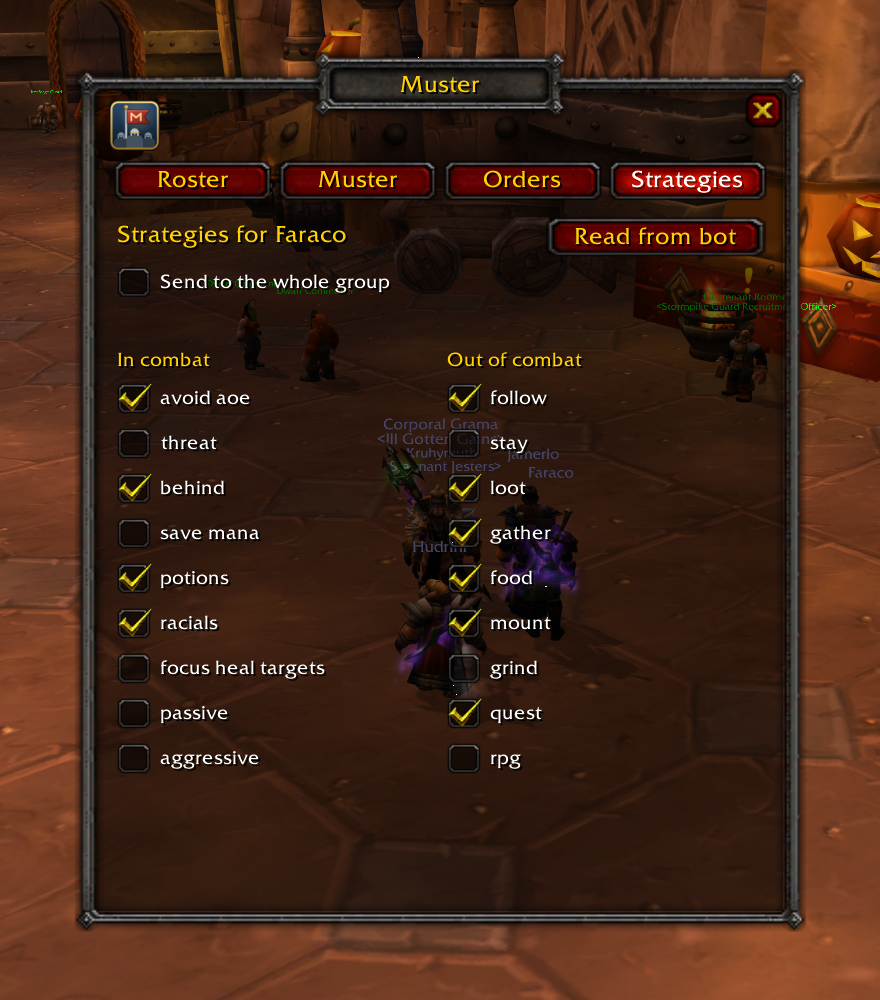
A bot runs two sets of strategies: one in combat and one out of combat. This tab shows the common ones as checkboxes; hover over one to see what it does.
- Select a bot on the Roster tab, or target it.
- Press Read from bot. The bot whispers its strategies back and the boxes fill in.
- Tick or untick a box to switch that strategy on or off. The bot saves the change.
Tick Send to the whole group to switch a strategy on every bot in your group at once. Muster can’t read a whole group’s state back, so the boxes start empty in this mode; each click is sent as it is.
Command bar
The command bar puts every command one click away without opening the window. It sits above your action bars at first; drag the banner at its left end to move it.
- Categories: Orders, Bots, Raise a group, Combat strategies and Out-of-combat strategies. Click one to open a column of its commands above it; click it again to close it.
- Commands: hover over an icon for what it does and the exact line it sends. Left-click runs it. For strategies, left-click turns one on and shift-click turns it off.
- Pins: right-click any command to pin it to the bar itself, up to ten. Right-click a pinned one to unpin it. Follow, stay, attack and flee start pinned.
- Who listens: orders and strategy changes go to whoever the Orders tab is set to: everyone, one role, or the selected bot. Each tooltip says who.
Show or hide it with /muster bar, its key binding, or shift-click on the minimap button.
Minimap button
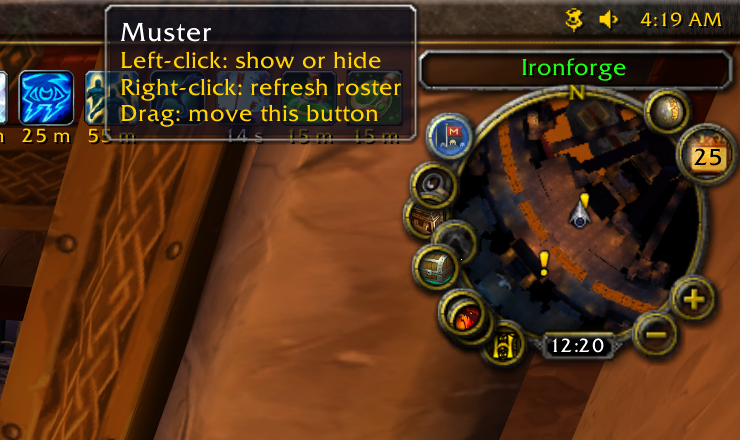
Left-click opens or closes the window, shift-click shows or hides the command bar, right-click refreshes the roster, and dragging moves it around the minimap. /muster minimap hides or shows it; /muster minimap reset puts it back in its starting place if another addon’s button covers it.